
First run
Open the app. The left sidebar is your map of the whole product — eight tabs, each one a feature.
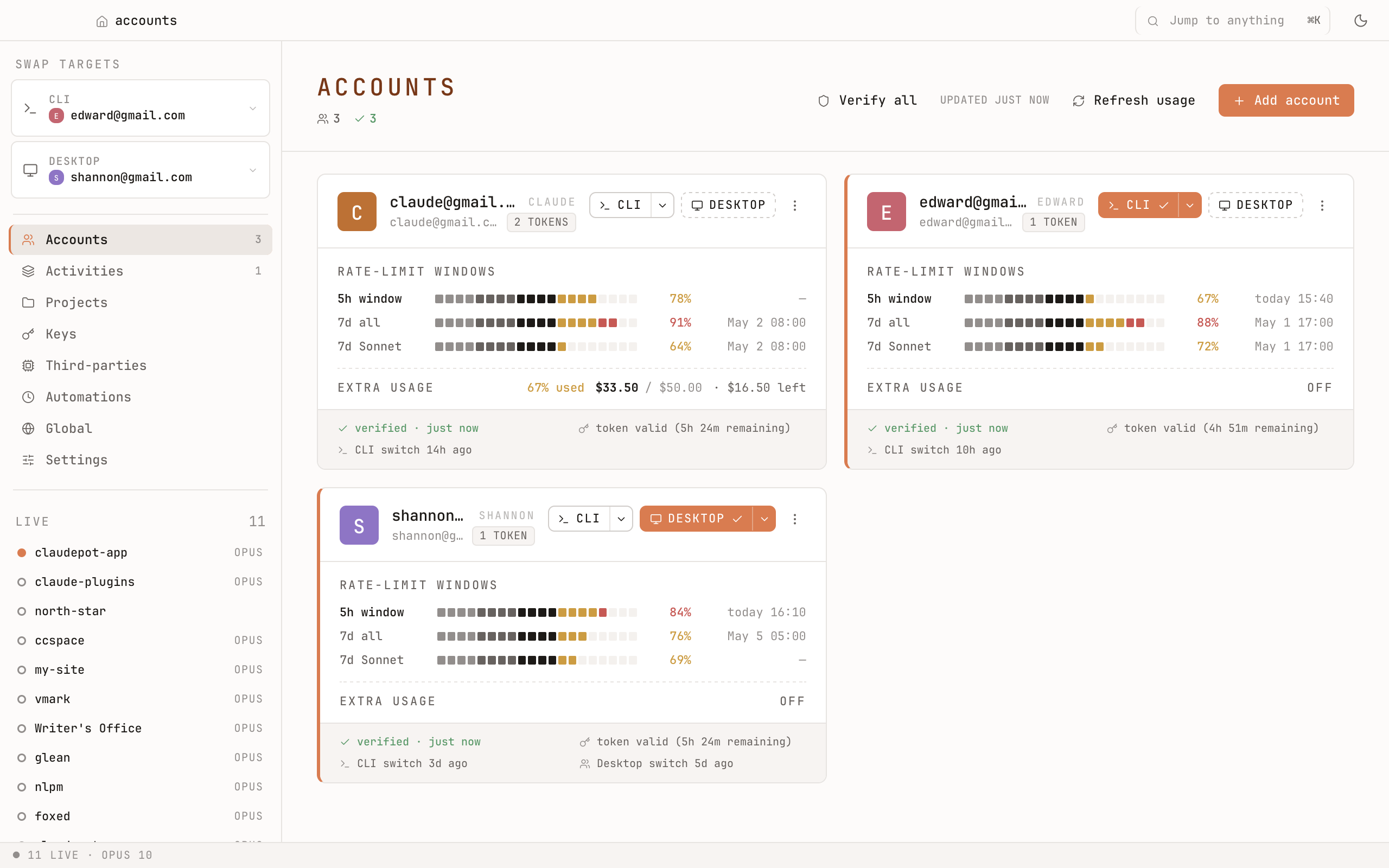
1. Add your accounts
Start in Accounts. Three ways to add one:
- Browser OAuth — a one-time browser sign-in. No token handling on your part.
- Import — pull in the account Claude Code is currently signed into.
- Paste a refresh token — if you already have one.
Add as many as you use. Each lives in the OS keychain.
2. Pick which one is "live"
Two slots, switched independently:
- CLI — the account Claude Code uses when you type
claudein your terminal. - Desktop — the account Claude Desktop uses when you launch the app.
You can put your work account in CLI and your personal in Desktop, at the same time. Switch from the sidebar, the ⌘K command palette, or the menu-bar tray icon.
3. Look around
Each sidebar tab is one feature, end to end:
- Accounts — manage every Claude account you have.
- Activities — what's running right now and what's been busy lately.
- Projects — every project Claude has ever touched.
- Keys — your API keys and OAuth tokens, in one inventory.
- Third-parties — run non-Anthropic models through the same
claudeinterface. - Automations — schedule prompts on cron.
- Global — browse your global Claude Code configuration.
- Settings — theme, cleanup, diagnostics, about.
Keyboard shortcuts
| Shortcut | Action |
|---|---|
⌘K | Command palette |
⌘R | Refresh |
⌘N | Add (account, key, etc., depending on the active tab) |
⌘, | Settings |
⌘1 … ⌘8 | Jump to sidebar tab |
⌘F | Focus search |
Esc | Close modal |